1Password Review – Password Manager & Online Security
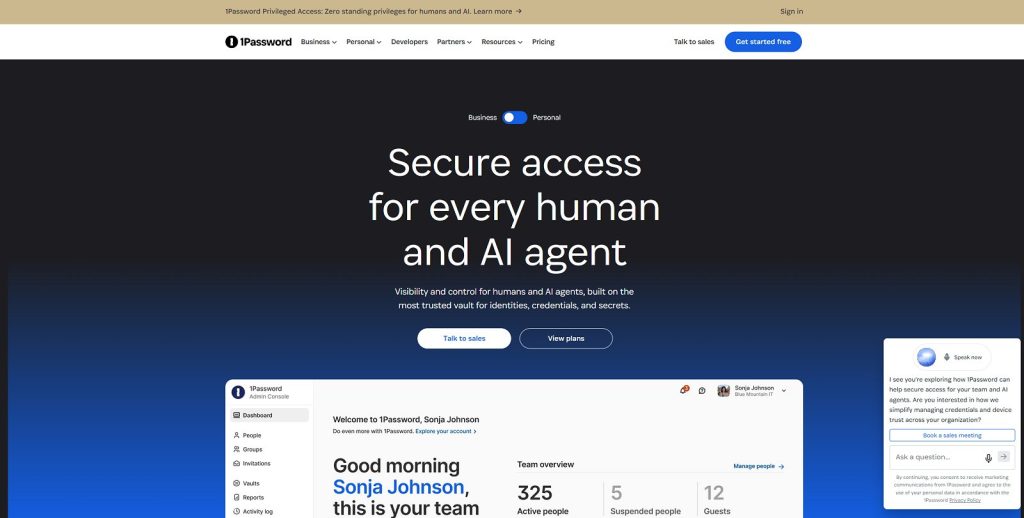
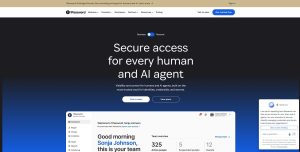
1Password is a password manager designed to help individuals, families, teams, and businesses securely store passwords, payment information, secure notes, and other sensitive data. Instead of remembering dozens of different passwords, users can store their credentials in a protected vault and use the service to generate and fill in strong passwords.
The service also includes features for passkeys, secure sharing, two-factor authentication codes, identity protection, and monitoring for certain security risks. Its apps and browser extensions are available across major desktop and mobile platforms.
For people who regularly use online banking, shopping, email, social media, cloud services, and work applications, a password manager can make it easier to use unique credentials for every account without having to memorize them individually.
Explore 1Password
Discover a secure password manager for passwords, passkeys, payment information, secure notes, and online accounts.
Explore 1PasswordTable of Contents
- What Is 1Password?
- Quick Facts
- How a Password Manager Works
- 1Password Vaults
- Security and Encryption
- Password Generation and Storage
- Autofill and Browser Extensions
- Passkeys
- Two-Factor Authentication
- Watchtower
- Travel Mode
- 1Password for Families
- 1Password for Business
- 1Password for Teams
- Devices and Platforms
What Is 1Password?
1Password is a password management platform that provides a central place for storing and managing credentials and other private information. The main idea is simple: instead of using the same password across multiple websites or trying to remember dozens of complex passwords, users can let the password manager securely store them.
The service can also generate unique passwords when creating new accounts. This is important because password reuse creates a connection between otherwise unrelated services. If one website suffers a credential breach and the same password is used elsewhere, attackers may attempt to use those credentials on other services.
A password manager breaks this connection by making it practical to use a different password for every account.
Beyond Passwords
A modern password manager is more than a digital list of passwords. 1Password can also store secure notes, credit card information, identity details, documents, API credentials, and other sensitive information in encrypted vaults.
This makes it useful for both everyday consumers and professionals who need to manage a larger collection of confidential information.
Why Use a Password Manager?
- Generate strong and unique passwords
- Store credentials securely
- Reduce password reuse
- Automatically fill login information
- Store passkeys and other authentication data
- Share selected information securely
- Access information across supported devices
- Keep sensitive notes and documents organized
Quick Facts
| Feature | Details |
|---|---|
| Product Type | Password manager |
| Primary Purpose | Secure credential and sensitive information management |
| Password Generation | Yes |
| Autofill | Yes |
| Browser Extensions | Yes |
| Passkeys | Supported |
| Two-Factor Authentication | Supported |
| Secure Vaults | Yes |
| Family Sharing | Available through family plans |
| Business Features | Available through business plans |
| Cross-Platform Access | Supported across major platforms |
How a Password Manager Works
The easiest way to understand a password manager is to think of it as a secure digital keyring. Instead of carrying dozens of individual keys, you keep them organized in one protected place and use the appropriate one when needed.
With a password manager, the user typically creates one strong account password that protects access to the vault. The application can then store individual credentials and provide them when the user logs into websites or applications.
One Strong Password
The main account password is particularly important because it protects access to the stored information.
Users should choose a strong, unique password that is not reused for another online service.
Unique Passwords for Every Account
One of the biggest advantages is the ability to create a different password for every website.
For example, your email account, online store, cloud storage, social network, and banking account can all use completely different credentials without requiring you to remember every one.
Automatic Filling
Once credentials have been stored, the application can recognize supported login forms and offer to fill the username and password.
This removes much of the friction associated with using long, randomly generated passwords.
Make Password Management Easier
Use 1Password to organize credentials, generate strong passwords, and simplify secure access to your online accounts.
Explore Password Manager1Password Vaults
Vaults provide a way to organize stored information into separate collections. This can be useful when users need to separate personal credentials from work information or want to organize different types of sensitive data.
Personal Information
A personal vault can contain passwords, payment information, secure notes, identity details, and other private items.
Work Information
Separate work-related information can make it easier to keep professional credentials distinct from personal accounts.
Shared Vaults
Families and organizations can share selected information with other authorized users rather than exposing an entire private collection.
This approach is particularly useful when multiple people need access to the same accounts or credentials.
Organizing Sensitive Information
Good organization becomes increasingly valuable as the number of stored items grows. Categories, tags, and vaults can make it easier to locate specific information without compromising the separation between different types of data.
Security and Encryption
Security is the central purpose of a password manager. A service that stores passwords must protect the information both when it is stored and when it is transmitted between devices.
1Password uses end-to-end encryption and a security architecture designed to protect stored information. Its security model includes a Secret Key in addition to the account password, providing another layer of protection for the encrypted vault.
Encryption
Encryption transforms readable information into protected data that cannot be interpreted without the appropriate cryptographic keys.
This means the stored contents are not simply maintained as an ordinary database of usernames and passwords.
Secret Key
The Secret Key is an important part of the account security model. It works together with the account password to help protect access to encrypted data.
Zero-Knowledge Design
The architecture is designed so that the service provider does not have access to the information stored inside a user’s encrypted vault in readable form.
This is an important distinction between a dedicated password manager and storing passwords in an ordinary document or spreadsheet.
Security Audits
Independent security assessments can provide additional confidence when evaluating a password manager. Users should consider the provider’s security architecture, history, transparency, and published security information rather than relying on marketing claims alone.
Protect Your Digital Credentials
Explore 1Password’s approach to encrypted vaults, account security, and private information management.
Explore Security FeaturesPassword Generation and Storage
Creating unique passwords for every account is one of the most important habits in online security. The problem is that strong passwords can be difficult to remember, particularly when every service requires a different credential.
A password manager solves this practical problem by generating and storing complex passwords automatically.
Strong Passwords
Generated passwords can contain combinations of letters, numbers, and symbols and can be made considerably longer than passwords people typically create themselves.
The exact password requirements should still be adapted to the website or service being protected.
Unique Credentials
Each account should ideally have its own password. If one credential is compromised, unique passwords help prevent the same password from being used to access unrelated accounts.
Password Updates
When a password needs to be changed, the manager can generate and store a replacement rather than requiring the user to invent another password.
Secure Storage
Once stored, credentials can be retrieved when needed through supported applications and browser extensions.
This is particularly useful for users who maintain dozens or hundreds of online accounts.
Autofill and Browser Extensions
Browser extensions make password managers considerably more convenient because they bring stored credentials directly into the browsing experience.
Login Autofill
When visiting a website with saved credentials, the extension can offer the appropriate login information.
New Account Creation
When creating an account, the password generator can be used to create a strong credential and save it immediately.
Payment Information
Stored payment details can also be used on supported forms, reducing the need to repeatedly type card information.
Multiple Browsers
Users who work across several browsers can install the appropriate extension on each supported browser and access the same account.
Simplify Secure Logins
Explore 1Password browser extensions and autofill features for faster, more convenient account access.
Explore 1PasswordPasskeys
Passkeys are an alternative to traditional passwords. Instead of relying on a password that the user types into a website, passkey technology uses cryptographic credentials associated with a device or password manager.
1Password supports passkeys, allowing users to store and manage supported credentials alongside other login information.
Why Passkeys Matter
Passwords can be stolen through phishing, reused across services, or exposed in data breaches. Passkeys are designed to reduce reliance on secrets that users manually type into websites.
Convenience
Passkeys can make authentication faster because users may be able to approve access using the security method already configured on their device or within their password manager.
Compatibility
Passkey support depends on the website, application, operating system, browser, and authentication environment. Not every service supports passkeys yet.
Two-Factor Authentication
Two-factor authentication adds another security layer beyond a username and password.
Instead of relying exclusively on a password, an account can require an additional authentication factor such as a code generated by an authenticator application, a security key, or another supported method.
Authenticator Codes
1Password can store supported two-factor authentication secrets and generate time-based verification codes.
This can make account protection more convenient because the login credential and authentication code can be managed from the same application.
Why 2FA Is Important
If a password is compromised, a second authentication factor can make it significantly harder for an attacker to access the account.
For important accounts such as email, financial services, cloud storage, and business applications, enabling an appropriate second factor is a valuable security practice.
Security Keys
Hardware security keys provide another option for protecting important accounts. They are particularly useful for users who want strong protection against phishing and account takeover.
Watchtower
Watchtower is designed to help users identify security-related issues associated with stored credentials and online accounts.
It can highlight situations such as weak or reused passwords and provide information about certain security risks associated with websites and accounts.
Weak Passwords
Weak credentials can be difficult to defend against automated attacks. Identifying them makes it easier to prioritize password changes.
Reused Passwords
Password reuse creates unnecessary risk because one compromised password may expose multiple accounts.
Compromised Services
Security monitoring can help users identify accounts associated with known security incidents and determine which credentials should be changed.
Users should treat security alerts as prompts to review and improve account security rather than assuming that every notification represents an active attack.
Check Your Password Security
Explore tools designed to identify weak, reused, and potentially compromised credentials.
Explore Security Tools1Password Travel Mode
Travel Mode is designed for people who want additional control over which information is available on their devices while traveling. It can be useful when crossing borders or entering situations where a device may be inspected.
How Travel Mode Works
Travel Mode allows users to control which vaults are available on their devices. Information placed in vaults that are not marked for travel can be removed from the device while Travel Mode is active.
The information remains available in the user’s account and can be restored when Travel Mode is disabled.
Why Use Travel Mode?
Traveling with a large collection of sensitive information can create unnecessary exposure. By limiting the data stored locally on a device, users can reduce the amount of private information available if the device is inspected or accessed.
Business Travel
Travel Mode can also be useful for employees carrying company devices or accessing business credentials while traveling internationally.
Organizations can establish appropriate policies around which information employees should have available when traveling.
Explore Travel Security Features
Discover tools designed to help protect sensitive credentials and information while traveling.
Explore 1Password1Password for Families
Families often share access to subscriptions, streaming services, household accounts, Wi-Fi credentials, travel information, and other online services. A family password manager can provide a structured way to manage this information.
Shared Access
Selected credentials can be shared with family members without giving everyone access to private information.
This distinction is useful when some accounts are shared while others should remain personal.
Private Vaults
Each family member can maintain private information separately from shared family data.
This allows users to keep personal accounts and credentials private while still collaborating on household services.
Account Recovery
Family-oriented account recovery features can provide an additional way to help members regain access if they experience problems accessing their account.
Children and Online Safety
Families can use password management as an opportunity to teach children better security habits, including using unique passwords, protecting account credentials, and enabling additional authentication where available.
Protect Your Family’s Accounts
Keep shared credentials organized while allowing family members to maintain their own private information.
Explore Family Plans1Password for Business
Businesses have different password management requirements from individual users. Employees may need access to company accounts, shared credentials, software services, infrastructure, and other sensitive information.
A centralized password management platform can help organizations establish consistent security practices while controlling access to company information.
Employee Access
Organizations can provide employees with access to the credentials they need without distributing passwords through email, messaging applications, spreadsheets, or other insecure methods.
Shared Credentials
Teams frequently need access to common accounts. A password manager can make sharing these credentials easier while keeping them organized within controlled vaults.
Offboarding Employees
Employee departures create an important security challenge. Organizations need to make sure former employees no longer have access to company credentials.
Centralized account management can make this process more manageable than manually changing every password that an employee may have known.
Security Policies
Business plans can provide administrative controls that help organizations establish password and security policies across teams.
This can be particularly useful for companies with many employees or distributed teams.
Business Credentials
Organizations may need to protect more than ordinary website passwords. API credentials, secure notes, software licenses, infrastructure credentials, and other sensitive information can also require controlled access.
Explore 1Password for Business
Discover password management features designed for teams, employees, shared credentials, and business security.
Explore Business Plans1Password for Teams
Team collaboration often requires employees to access the same services and accounts. Sharing credentials through ordinary communication channels can create unnecessary security risks.
Shared Team Vaults
Shared vaults allow teams to organize credentials according to projects, departments, or specific responsibilities.
This can make it easier to give the right people access to the information they actually need.
Access Management
Organizations can manage access according to employee roles and responsibilities. This supports the principle of giving users only the access necessary for their work.
Remote Teams
Password management can be particularly useful for distributed organizations where employees work from different locations and need secure access to common services.
Developers and Technical Teams
Technical teams may need to manage API keys, development credentials, infrastructure information, and other secrets in addition to standard website passwords.
Centralized management can reduce the temptation to store these credentials in plain-text documents or messaging channels.
Devices and Platforms
A password manager becomes considerably more useful when credentials are available across the devices people use every day.
1Password provides applications and extensions for major desktop and mobile environments, allowing users to access their stored information across supported devices.
Windows
Windows users can use the desktop application and supported browser extensions to manage credentials and other stored information.
Mac
Mac users can access their vaults through the dedicated application and supported browser integrations.
iPhone and iPad
Mobile access allows users to retrieve passwords, passkeys, secure notes, and other information when away from their primary computer.
Android
Android users can access stored credentials through the mobile application and use supported autofill functionality.
Web Browsers
Browser extensions are particularly useful because most online accounts are accessed through a browser. They can provide password suggestions, autofill, password generation, and other features directly within the browsing environment.
Use 1Password Across Your Devices
Access passwords, passkeys, secure notes, and other information across supported computers, phones, tablets, and browsers.
Explore 1Password1Password for Online Shopping
Online shopping often requires users to maintain accounts with many different retailers. Reusing the same password across these services can increase the potential impact of a compromised account.
Unique Shopping Passwords
A password manager makes it practical to use a different password for every retailer without having to remember each credential.
Payment Information
Payment details can be stored securely so that users do not need to repeatedly type the same information when completing supported forms.
Shopping From Multiple Devices
People often shop using a desktop computer, laptop, tablet, or smartphone. Cross-device access can make it easier to use consistent security practices regardless of which device is being used.
Account Security
Retail accounts can contain addresses, order histories, payment information, and other personal details. Protecting these accounts with unique credentials and additional authentication can reduce unnecessary risk.
1Password for Banking and Financial Accounts
Financial accounts deserve particularly strong protection because unauthorized access can have serious consequences.
Unique Credentials
Each financial service should use a unique password rather than sharing credentials with email, shopping, or other accounts.
Two-Factor Authentication
Where supported, two-factor authentication can provide an additional layer of protection beyond the password.
Secure Notes
Users can store certain sensitive information in secure notes rather than keeping it in ordinary documents or unencrypted files.
Phishing Awareness
Password management can help reduce some risks, but users should still verify the website address before entering sensitive information. A password manager does not replace careful browsing habits.
Secure Your Important Accounts
Organize credentials and strengthen account security with unique passwords and additional authentication.
Explore 1Password1Password for Remote Work
Remote workers often access company systems from personal computers, home networks, mobile devices, and shared workspaces. Good credential management becomes especially important when work is distributed across multiple environments.
Work Accounts
Email, project management, cloud storage, communication platforms, and other business services should use separate credentials.
Shared Credentials
Teams can share selected credentials without sending passwords through ordinary messaging applications or email.
Personal and Work Separation
Separate vaults can help users maintain a distinction between personal and professional information.
Remote Device Security
Employees should also protect the devices used to access company accounts with strong device passwords, encryption, updates, and appropriate security software.
1Password for Developers
Developers frequently handle sensitive information that goes beyond normal website passwords. API keys, database credentials, SSH keys, cloud credentials, and other secrets can all require careful management.
API Credentials
API keys should not be stored in public repositories or shared through unsecured communication channels.
A dedicated secrets-management approach can help developers keep sensitive credentials separate from application code.
Development Environments
Development projects can involve multiple environments, including local development, testing, staging, and production. Keeping credentials organized reduces the chance of accidentally using the wrong secret in the wrong environment.
Team Collaboration
Developers may need access to shared services while still maintaining individual accounts for systems that support them.
Centralized credential management can make collaboration easier without requiring passwords to be copied into documents or chat messages.
Security Best Practices
- Never commit passwords or API keys to public repositories
- Use unique credentials for different environments
- Rotate sensitive credentials when necessary
- Use additional authentication where supported
- Limit access according to job responsibilities
- Remove access when team members leave a project
Secure Your Development Credentials
Explore password and secret management features for developers, technical teams, and modern work environments.
Explore Developer Security1Password for Everyday Online Security
Password security is no longer limited to a few important accounts. Most people now have dozens of online services, including email, shopping, entertainment, social networks, cloud storage, banking, work applications, and subscriptions.
Managing all of these accounts manually can encourage poor security habits such as password reuse or simple credentials.
One Account at a Time
A password manager allows users to gradually improve their security by replacing reused or weak passwords with unique credentials.
Start With Important Accounts
Email should usually be one of the first accounts to secure because access to an email inbox can sometimes be used to reset passwords for many other services.
Financial accounts, cloud storage, social networks, and work accounts should also receive strong and unique credentials.
Build Better Habits
The biggest benefit of a password manager is not simply storing passwords. It is making secure behavior easier to maintain every day.
When generating, storing, and filling a unique password takes only a few seconds, there is less incentive to reuse the same password across multiple websites.
Advantages and Considerations
| Advantages | Considerations |
|---|---|
| Centralized password management | Users need to protect their main account carefully |
| Strong password generation | Some advanced features depend on the plan |
| Cross-device access | Initial setup takes some time |
| Passkey support | Passkey availability depends on individual services |
| Secure sharing | Users need to understand vault permissions |
| Browser autofill | Browser extensions require appropriate permissions |
| Family features | Family members need their own account access |
| Business management | Organizations need appropriate policies and administration |
Who Should Use a Password Manager?
A password manager can be useful for almost anyone who maintains multiple online accounts.
Individual Users
People with many online accounts can use one to reduce password reuse and simplify login management.
Families
Families can share selected household credentials while keeping private accounts separate.
Remote Workers
Remote employees can use centralized credential management to separate work and personal information.
Businesses
Organizations can use centralized management to control access to shared credentials and improve employee security practices.
Developers
Technical users can benefit from secure management of passwords, API credentials, and other sensitive information.
Improve Your Password Security
Organize your accounts, replace reused passwords, and make stronger credentials easier to manage.
Explore 1PasswordHow to Choose a Password Manager
Choosing a password manager depends on how many accounts you manage, which devices you use, whether you need to share credentials, and how much control you want over your stored information.
Security
Start by examining the provider’s encryption architecture, authentication methods, account recovery options, and security history.
A password manager should make strong security practical without making everyday access unnecessarily complicated.
Ease of Use
Autofill, password generation, browser extensions, and mobile applications can make a major difference in daily use.
A technically strong product is less useful if it is inconvenient enough that users stop using it consistently.
Cross-Platform Support
If you regularly switch between a desktop computer, laptop, smartphone, and tablet, make sure the service supports the platforms and browsers you use.
Sharing
Families and teams should pay particular attention to shared vaults, permissions, account recovery, and administrative controls.
Passkeys
Passkey support is becoming increasingly important as more websites move toward passwordless authentication.
Price
Compare the features included with each subscription rather than looking only at the monthly or annual price.
A plan that includes family sharing or business administration may provide considerably more value for households and organizations than a basic individual subscription.
Explore 1Password Plans
Compare password management features for personal use, families, and organizations.
View 1Password1Password vs Other Password Managers
1Password competes with several established password management services. The right choice depends on security features, platform support, sharing capabilities, pricing, and personal preferences.
| Password Manager | Best Known For | Potential Advantage |
|---|---|---|
| 1Password | Security and cross-platform password management | Strong ecosystem and family and business features |
| Bitwarden | Open-source password management | Strong value and transparency |
| Dashlane | Password management and security features | Simple user experience |
| NordPass | Password management from the Nord Security ecosystem | Simple setup and cross-device access |
| RoboForm | Password management and form filling | Long-established autofill functionality |
1Password vs Bitwarden
Bitwarden is well known for its open-source approach and competitive pricing. 1Password places considerable emphasis on its polished user experience, security architecture, family features, and business tools.
Users who prioritize open-source software may prefer Bitwarden, while people looking for an integrated premium experience may prefer 1Password.
1Password vs Dashlane
Both services provide password storage, password generation, autofill, and security-related features.
The best option depends on the exact features, supported platforms, subscription requirements, and interface that suit the user.
1Password vs NordPass
NordPass is part of the broader Nord Security ecosystem and provides password management across supported devices.
1Password has a particularly strong focus on vault organization, secure sharing, families, teams, and business use.
1Password vs RoboForm
RoboForm has a long history in password management and is particularly associated with form filling and credential storage.
1Password offers a modern ecosystem with features such as passkey support, secure vaults, family sharing, and business administration.
Using 1Password to Improve Personal Security
A password manager is most effective when it becomes part of a consistent security routine.
Replace Reused Passwords
Start by identifying accounts that use the same password. Replace those credentials with unique passwords generated and stored by the manager.
Secure Your Email
Your primary email account deserves particular attention because it may be used to reset passwords for many other services.
Use a strong, unique password and enable additional authentication whenever the provider supports it.
Protect Financial Accounts
Banking, investment, payment, and other financial accounts should use unique credentials and appropriate additional authentication.
Review Old Accounts
Over time, people accumulate accounts they no longer use. Closing unnecessary accounts can reduce the amount of personal information exposed across the internet.
Update Important Credentials
Security incidents, suspected compromise, or changes in account access may justify changing a password.
A password manager makes this process considerably easier because new credentials can be generated and saved immediately.
Password Security for Families
Family accounts can contain a mixture of shared and private information. A structured vault system helps separate these two types of data.
Shared Accounts
Streaming services, household subscriptions, utilities, travel accounts, and other shared services can be placed in an appropriate shared vault.
Private Accounts
Personal email, banking, employment, healthcare, and other private accounts should remain accessible only to the appropriate individual.
Teaching Good Habits
Families can use a password manager to teach younger users why password reuse is dangerous and why every important account should have unique credentials.
Account Recovery
Families should also understand how account recovery works and ensure that each member knows how to regain access to their own information when necessary.
Password Security for Businesses
Businesses face additional challenges because credentials are often shared between employees, departments, contractors, and external services.
Centralized Management
A centralized system can make it easier to control access to shared credentials and reduce the number of passwords distributed through email or messaging platforms.
Employee Onboarding
New employees can be given access to the credentials required for their role without manually sending lists of passwords.
Employee Offboarding
When an employee leaves, access can be removed from shared resources without requiring the organization to rely on informal password-sharing records.
Least Privilege
Users should receive access appropriate to their responsibilities. Limiting unnecessary access reduces the potential impact of a compromised account.
Security Culture
Technology alone cannot eliminate security risks. Employees should still receive training about phishing, suspicious links, account protection, and safe handling of sensitive information.
Password Security Best Practices
Even with a password manager, good security practices remain important.
- Use a unique password for every important account.
- Use long and randomly generated passwords where possible.
- Enable two-factor authentication on important accounts.
- Use passkeys when supported and appropriate.
- Keep your devices and browsers updated.
- Never share your main password through email or messaging services.
- Be cautious when responding to unexpected login requests.
- Review security alerts and compromised-account notifications.
- Remove access for people who no longer need it.
- Keep recovery information current.
Frequently Asked Questions
What is 1Password used for?
It is used to securely store passwords, passkeys, payment information, secure notes, identity information, and other sensitive data.
Is 1Password a password manager?
Yes. Its primary purpose is password and credential management, with additional features for authentication, secure storage, sharing, and account security.
Can 1Password generate strong passwords?
Yes. The built-in password generator can create strong credentials for new accounts and password changes.
Can 1Password store passkeys?
Yes. Passkeys are supported and can be managed alongside other stored credentials.
Does 1Password support two-factor authentication?
Yes. Supported authentication information can be stored and used as part of account login workflows.
Does 1Password work on phones?
Yes. Applications are available for supported mobile platforms, allowing users to access their stored information while away from a computer.
Does 1Password work with browsers?
Yes. Browser extensions provide features such as password autofill, password generation, and access to stored credentials.
Can families share passwords?
Yes. Family plans provide tools for sharing selected credentials and information while keeping private data separate.
Can businesses use 1Password?
Yes. Business-oriented plans provide features designed for teams, shared credentials, access management, and organizational security.
Is 1Password good for developers?
It can be useful for developers who need to organize passwords, API credentials, secure notes, and other sensitive information.
What is Travel Mode?
Travel Mode allows users to control which vaults are available on their devices while traveling.
What is Watchtower?
Watchtower provides security-related information about stored credentials and can help identify issues such as weak or reused passwords.
Does 1Password support Windows?
Yes. Windows users can access their information through supported applications and browser extensions.
Does 1Password support Mac?
Yes. Mac users can use the supported application and browser integrations.
Is 1Password better than Bitwarden?
Neither is universally better. Bitwarden may appeal to users who prioritize open-source software and value, while 1Password offers a polished ecosystem with strong family and business features.
Is 1Password worth it?
It can be valuable for people who manage many online accounts and want a convenient way to use unique credentials, passkeys, and additional security features.
Getting Started With 1Password
Moving from manually managed passwords to a dedicated password manager does not need to happen all at once. A gradual approach can make the transition easier.
Step 1: Create Your Account
Start by setting up the account and choosing a strong primary password.
Step 2: Install the Apps
Install the application and browser extension on the devices and browsers you regularly use.
Step 3: Import Existing Credentials
If your current credentials are stored in another password manager or supported browser, use the appropriate import process to move them into your new vault.
Step 4: Secure Important Accounts
Start with email, financial services, work accounts, cloud storage, and other important services.
Step 5: Replace Reused Passwords
Gradually replace duplicate passwords with unique generated credentials.
Step 6: Enable Additional Authentication
Where supported, enable two-factor authentication or passkeys for important accounts.
Step 7: Organize Your Vaults
Use vaults and categories to separate personal information, work credentials, shared accounts, and other sensitive data.
Start Managing Your Passwords
Explore 1Password and make stronger, unique credentials easier to use across your digital life.
Explore 1Password